
Follow these steps to set up Chrome Remote Desktop on your macOS computer.
To get started, make sure you have the Google Chrome browser installed and that you’re signed in with a Google account (such as your Gmail or Google Workspace address).
Step 1: Open Google Chrome & Visit the Support Page
Begin by launching Google Chrome on your computer. In the address bar at the top, enter the following URL:
remotedesktop.google.com/support
This will take you to the Chrome Remote Desktop support access page, where you can set up your device for temporary remote access.

Step 2: Begin Setup & Add the Chrome Extension
On the remote support page, you’ll see a section titled Share This Screen. Before you can generate an access code, you may be prompted to install the Chrome Remote Desktop extension.
Click Add to Chrome, and then confirm by selecting Add Extension when the popup appears. This extension allows Chrome to manage and initiate remote desktop sessions securely.

Step 3: Download & Install the Remote Desktop Host
After adding the extension, you’ll be directed back to the setup page. Click Accept & Install to download the Chrome Remote Desktop Host application. This file is usually named:
chromeremotedesktophost.dmg
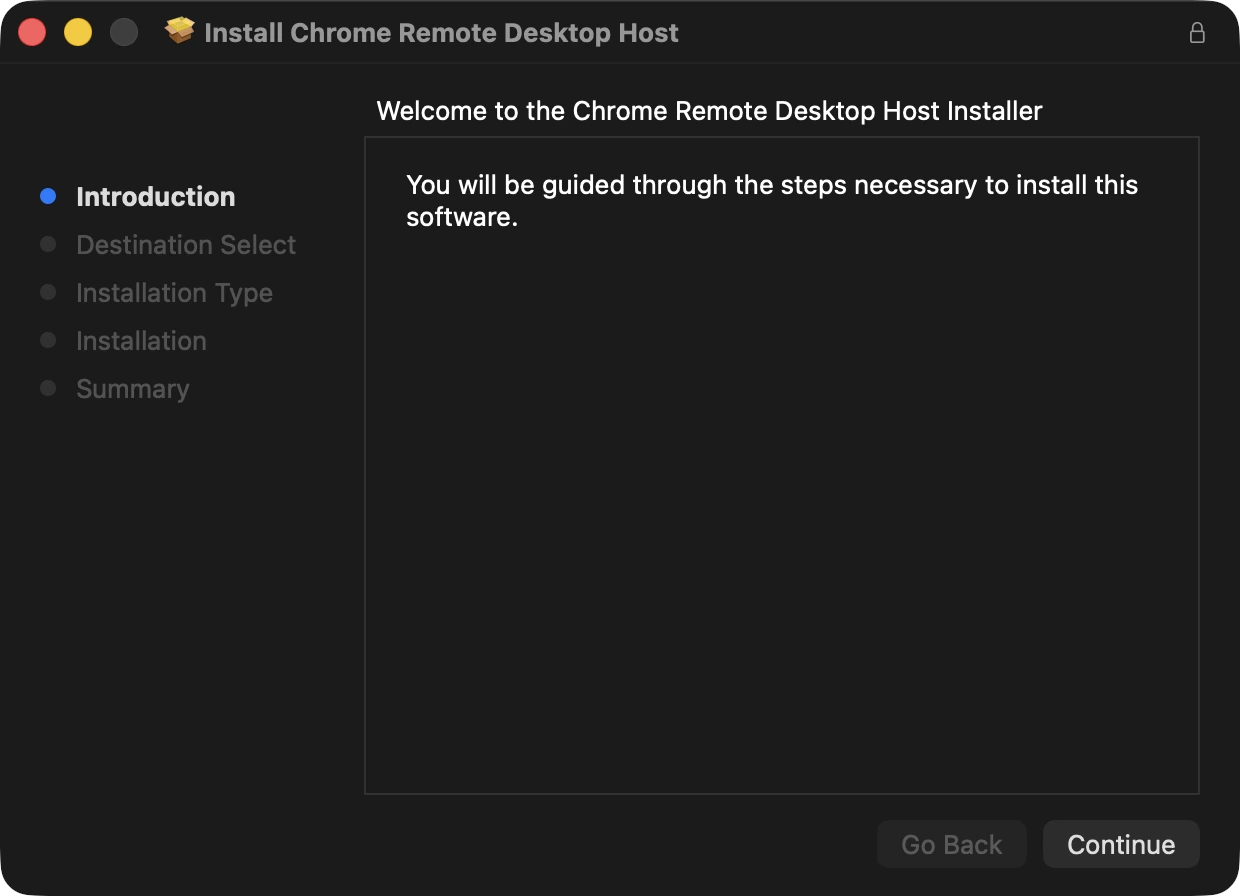
Once the download is complete, open the .dmg file and double-click the Chrome Remote Desktop Host.pkg file to launch the installer. Follow the on-screen prompts, and when asked, allow the installation by confirming any macOS security or administrator prompts. You may be asked to enter your Mac’s username and password to authorize the installation.
Step 4: Grant macOS Permissions for Remote Access
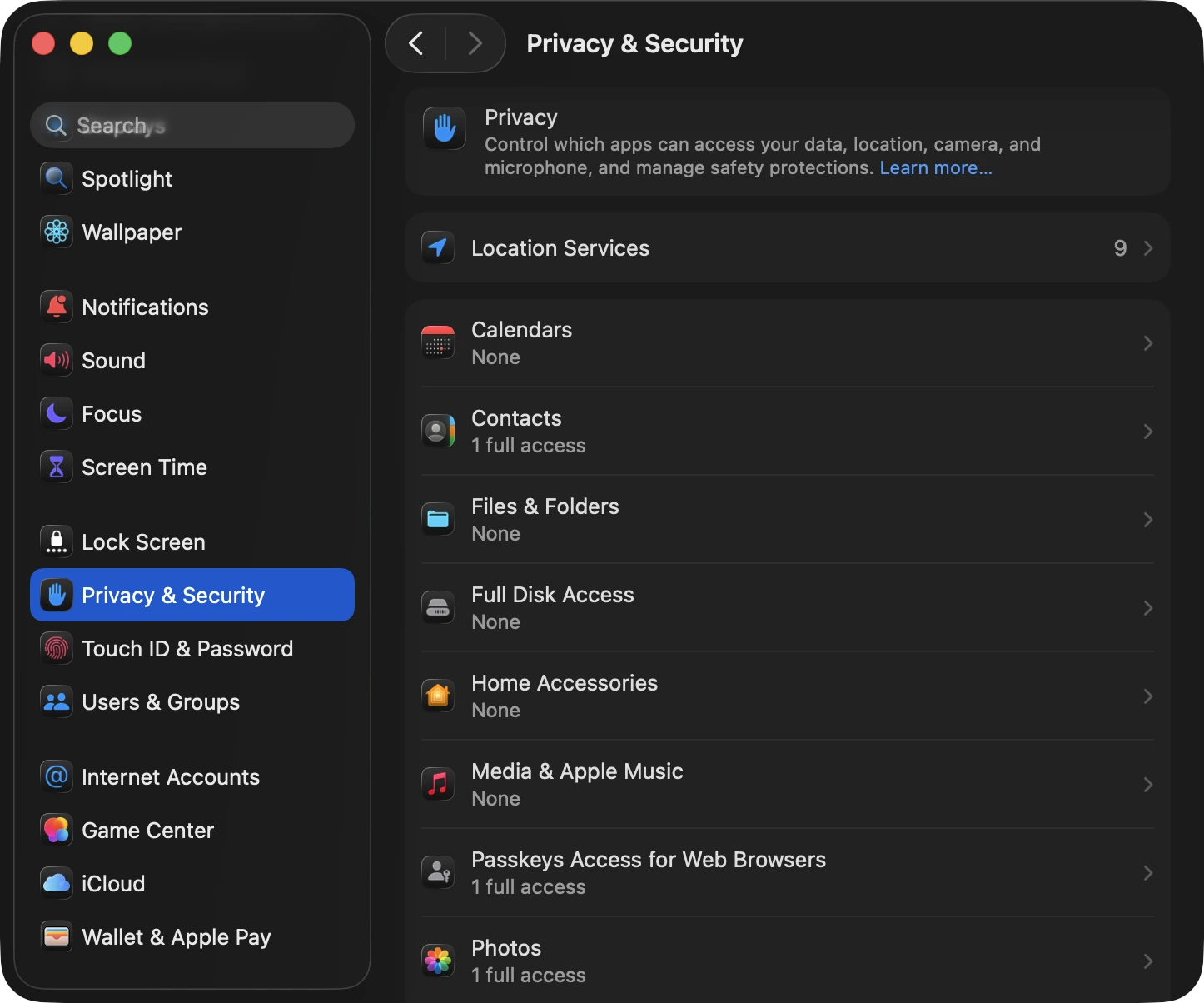
After installing the host software, macOS will ask you to grant certain permissions so that Chrome Remote Desktop can function properly. These permissions must be enabled in System Settings (or System Preferences, depending on your macOS version):
- Go to System Settings > Privacy & Security > Accessibility, and allow access for ChromeRemoteDesktopHost.
- Also enable access under System Settings > Privacy & Security > Screen & System Audio Recording and Full Disk Access, if prompted.
- You may need to click the lock icon in the corner of the window and enter your Mac’s username and password to make changes.
These settings ensure that we can see your screen and control your device only when you’ve granted access.
Step 5: Generate & Share the Support Access Code
Once the host application is installed, go back to the Remote Support page in Chrome, where you’ll see a section titled Share This Screen. Click the Generate Code button to create a one-time access code. This will produce a 12-digit code, which is valid for 5 minutes and can only be used once.
Please share this code with us right away so we can begin the support session. You’ll then see a prompt asking whether you’d like to allow the connection—click Share to confirm.
Make sure to keep the Chrome tab open while the session is active. You can stop the session at any time by clicking Stop Sharing in the browser window.

Follow these steps to set up Chrome Remote Desktop on your Windows computer.
To get started, make sure you have the Google Chrome browser installed and that you’re signed in with a Google account (such as your Gmail or Google Workspace address).
Step 1: Open Google Chrome & Visit the Support Page
Begin by launching Google Chrome on your computer. In the address bar at the top, enter the following URL:
remotedesktop.google.com/support
This will take you to the Chrome Remote Desktop support access page, where you can set up your device for temporary remote access.

Step 2: Begin Setup & Add the Chrome Extension
On the remote support page, you’ll see a section titled Share This Screen. Before you can generate an access code, you may be prompted to install the Chrome Remote Desktop extension.
Click Add to Chrome, and then confirm by selecting Add Extension when the popup appears. This extension allows Chrome to manage and initiate remote desktop sessions securely.

Step 3: Download & Install the Remote Desktop Host
After adding the extension, you’ll be directed back to the setup page. Click Accept & Install to download the Chrome Remote Desktop Host application. This file is usually named:
chromeremotedesktophost.msi
Once the download is complete, double-click the .msi file to launch the installer. Follow the on-screen prompts, and when asked, allow the installation by confirming any Windows security or administrator prompts.

Step 4: Generate & Share the Support Access Code
Once the host application is installed, go back to the Remote Support page in Chrome, where you’ll see a section titled Share This Screen. Click the Generate Code button to create a one-time access code. This will produce a 12-digit code, which is valid for 5 minutes and can only be used once.
Please share this code with us right away so we can begin the support session. You’ll then see a prompt asking whether you’d like to allow the connection—click Share to confirm.
Make sure to keep the Chrome tab open while the session is active. You can stop the session at any time by clicking Stop Sharing in the browser window.

Follow these steps to set up Chrome Remote Desktop on your Linux (Ubuntu / Debian) computer.
To get started, make sure you have the Google Chrome browser installed and that you’re signed in with a Google account (such as your Gmail or Google Workspace address).
Make sure your Linux system is running a graphical desktop environment like GNOME, Xfce, or Cinnamon. These provide the full user interface required by Chrome Remote Desktop.
Step 1: Open Google Chrome & Visit the Support Page
Begin by launching Google Chrome on your computer. In the address bar at the top, enter the following URL:
remotedesktop.google.com/support
This will take you to the Chrome Remote Desktop support access page, where you can set up your device for temporary remote access.

Step 2: Begin Setup & Add the Chrome Extension
On the remote support page, you’ll see a section titled Share This Screen. Before you can generate an access code, you may be prompted to install the Chrome Remote Desktop extension.
Click Add to Chrome, and then confirm by selecting Add Extension when the popup appears. This extension allows Chrome to manage and initiate remote desktop sessions securely.

Step 3: Download & Install the Remote Desktop Host
After adding the extension, you’ll be directed back to the setup page. Click Accept & Install to download the Chrome Remote Desktop Host application. On Linux, this will be a .deb package, typically named:
chrome-remote-desktop_current_amd64.debOnce the download is complete, double-click the .deb file to launch the installer. Or, if you prefer to use the terminal, you can run the commands:
sudo dpkg -i chrome-remote-desktop_current_amd64.debsudo apt-get install -fIf the Generate Code button doesn’t appear after installation, create the configuration folder manually, by running the command:
mkdir ~/.config/chrome-remote-desktopThen refresh the Chrome tab and continue to the next step.
Step 4: Generate & Share the Support Access Code
Once the host application is installed, go back to the Remote Support page in Chrome, where you’ll see a section titled Share This Screen. Click the Generate Code button to create a one-time access code. This will produce a 12-digit code, which is valid for 5 minutes and can only be used once.
Please share this code with us right away so we can begin the support session. You’ll then see a prompt asking whether you’d like to allow the connection—click Share to confirm.
Make sure to keep the Chrome tab open while the session is active. You can stop the session at any time by clicking Stop Sharing in the browser window.
